How to Share Photos Between Android and iPhone (Every Method Ranked)

Last Updated: July 1, 2026
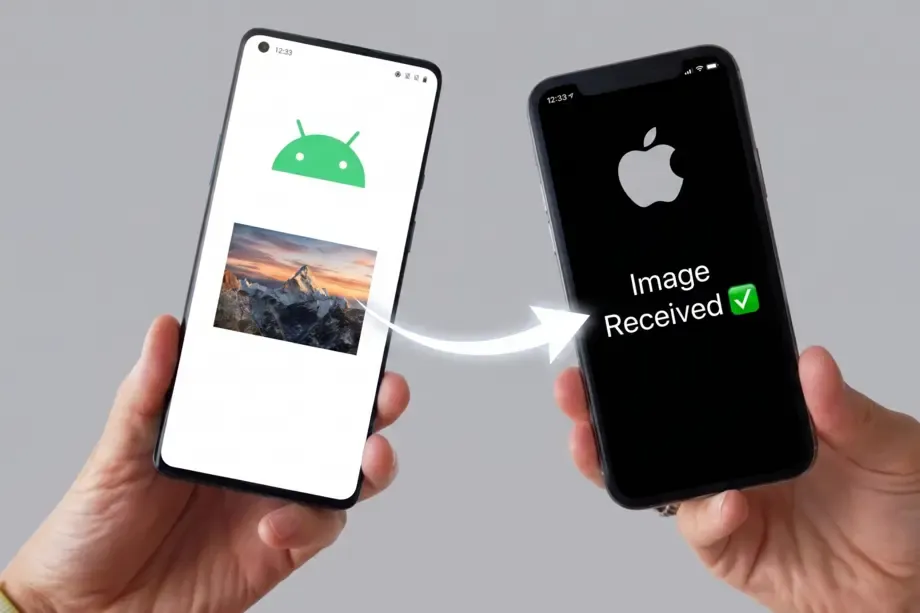
Table of Contents
- Why Traditional Sharing Methods Ruin Your Photos
- WhatsApp and Messaging Apps: The Compression Trap
- iCloud Shared Albums: Apple’s “Walled Garden”
- Every Cross-Platform Photo Sharing Method, Ranked
- 1. Frictionless Web-Link Sharing (The Gold Standard)
- 2. Cloud Storage Syncing (Google Photos & Google Drive)
- 3. Direct Wi-Fi Transfer Apps (LocalSend & Snapdrop)
- 4. Quick Share (QR Code & Web Link Method)
- How Do I Share Full Resolution Photos From My iPhone With Someone on Android?
- The Frictionless Winner: ShareThePic.app
If you have ever tried to gather photos after a weekend group trip with twelve friends, you know the absolute nightmare of cross-platform photo sharing. You take a stunning, high-resolution shot on your iPhone, text it to your Android-using friends, and it arrives looking like a compressed blurry mess. Or you try to AirDrop the photos in a parking lot, only to remember that half the group is locked out of iOS features. To share photos between Android and iPhone without losing quality, you must use a dedicated, app or web-based, full-resolution sharing platform.
In this guide, I will break down exactly why traditional cross-platform sharing methods ruin your memories, and rank the best ways to transfer photos between iPhone and Android in 2026.
Why Traditional Sharing Methods Ruin Your Photos
We all default to the easiest sharing buttons on our phones, but those convenience shortcuts come at a massive cost to your image quality. Here is the truth about the methods you are probably using right now.
WhatsApp and Messaging Apps: The Compression Trap
Messaging apps like WhatsApp, Telegram, and standard SMS are built for speed and low bandwidth, not photo preservation. When you send a photo through a standard group chat, the app compresses the file size by up to 80% (it’s crazy, I know).
Even worse, these apps strip away the EXIF metadata (the digital footprint containing the date, time, camera settings, and other metadata) of when the photo was captured. When your friends download the photos, their devices treat them as brand-new files taken at the moment of download. This completely messes up your gallery timeline getting images taken 3 days ago appearing as today.
iCloud Shared Albums: Apple’s “Walled Garden”
Apple’s built-in sharing tools work beautifully, but only if everyone in your group owns an Apple device. But the moment an Android user joins the mix, the system breaks.
While you can generate an iCloud web link for Android users, the experience is clunky and full of friction. Android users can view the photos in a browser, but they cannot upload their own photos to the album unless they sign up for an Apple ID. In a mixed-device group, this leaves half of your friends unable to contribute their own memories.
Every Cross-Platform Photo Sharing Method, Ranked
To help you navigate the ecosystem gap, here is how the most common photo-sharing methods rank in terms of quality preservation and user friction:
1. Frictionless Web-Link Sharing (The Gold Standard)
Web-link sharing is the ultimate solution for mixed-device groups. By uploading photos to a browser-based platform, anyone with an internet connection can view and download the files. The key is choosing a service that preserves original file sizes and metadata. Platforms like ShareThePic allow guests to contribute their own photos directly from their mobile browser after creating a free user account. It bridges the gap between iOS and Android without forcing anyone to install a new app.
2. Cloud Storage Syncing (Google Photos & Google Drive)
Cloud storage platforms like Google Photos or Dropbox are highly reliable for preserving full resolution and EXIF metadata. However, sine they are a cloud service, images take a long time to load and becomes a pain when there are numerous of them. They also introduce significant group friction. To contribute photos, your friends log in with a Google account and it uses the creators’s Google storage… Not everyone has a pro plan. If you are trying to collect photos 1,000+ photos, it’s going to look like a mess, be very slow, and then you will run out of storage.
3. Direct Wi-Fi Transfer Apps (LocalSend & Snapdrop)
For direct, local transfers without cloud hosting, tools like LocalSend (open-source) and Snapdrop (browser-based) are fantastic. They act like cross-platform AirDrop, allowing you to beam files directly between devices on the same Wi-Fi network.
The downside? They require everyone to be in the same physical space on the same network at the same time. If you want to share photos with friends after everyone has gone home, local transfer tools are useless.
4. Quick Share (QR Code & Web Link Method)
Android’s Quick Share now offers a way to share files with Apple devices. When you select a photo on Android and choose Quick Share, you can select “Use QR Code.” This uploads the files to a temporary Google server and generates a link or QR code that iPhone users can scan.
While this is a step in the right direction, it is a one-way street. iPhone users can download the files, but they cannot upload their own photos to create a shared group album.
| Method | Quality Preservation | Guest Setup Friction | Cross-Platform Support | EXIF Metadata Preservation |
|---|---|---|---|---|
| ShareThePic | ✅ 100% Original Quality | ✅ None (Uploads via browser) | ✅ Full (iOS & Android) | ✅ Yes (Sorted chronologically) |
| WhatsApp / Messaging | ❌ Compressed (up to 80% loss) | ❌ High (App required for all) | ✅ Full (iOS & Android) | ❌ No (Stripped completely) |
| iCloud Shared Albums | ⚠️ Downscaled to 2048px | ❌ High (Android needs Apple ID) | ❌ Restricted (Apple-first) | ✅ Yes (Sorted chronologically) |
| Google Photos Link | ✅ 100% Original Quality | ❌ High (App & Google sign-in req.) | ✅ Full (iOS & Android) | ✅ Yes (Sorted chronologically) |
| LocalSend / Snapdrop | ✅ 100% Original Quality | ⚠️ Medium (Local Wi-Fi network req.) | ✅ Full (iOS & Android) | ✅ Yes (Sorted chronologically) |
| Quick Share (QR / Link) | ✅ 100% Original Quality | ❌ High (One-way download only) | ⚠️ Limited (Android-to-iOS only) | ✅ Yes (Sorted chronologically) |
How Do I Share Full Resolution Photos From My iPhone With Someone on Android?
If you want to keep the pixels, original colors, and camera metadata intact when sending photos from an iPhone to an Android user, you must use a dedicated link-sharing service that does not compress files.
When you upload photos to a service like ShareThePic, the files are stored in their native formats (including HEIC, JPEG, or even RAW camera files) without any downscaling. When the recipient downloads them, they get the exact file your camera captured, with the original taken date preserved.
The Frictionless Winner: ShareThePic.app
If you want to skip the ecosystem wars and keep your travel memories in original quality, ShareThePic.app is the best app to share photos between iPhone and Android.
Here is why it stands out as the ultimate cross-platform solution:
- Zero app installs for contributors. Your guests do not need to download an application. They can upload photos directly from their phone’s native browser.
- Simple, secure signups. A quick, free user account registration (via Google OAuth or email) keeps the shared album secure and prevents spam while organizing all contributions.
- No quality compression. We store and share your photos in their original resolution. If you upload a 4K travel shot, your friends download a 4K travel shot.
- Full EXIF metadata preservation. Capture timestamps and location tags remain untouched. This allows the shared album to sort itself chronologically, creating a seamless, collaborative timeline of your trip.
Next time you are back from a trip or hosting a party, skip the messy WhatsApp group chat. Create your free shared photo album on ShareThePic and watch your memories collect themselves in pristine resolution.
Frequently Asked Questions
What is the easiest way to share photos between an iPhone and an Android phone?
What is the easiest way to share photos between an iPhone and an Android phone?
The easiest way to share photos cross-platform without forcing app downloads is using a web-based service like ShareThePic. The organizer creates a shared album link, and guests can upload or download original-quality photos directly from their mobile browser after logging in with a free account.
Why do photos lose quality when sent from iPhone to Android?
Why do photos lose quality when sent from iPhone to Android?
Photos lose quality because traditional MMS messaging and apps like WhatsApp use heavy compression algorithms to minimize file size and speed up transmission. This reduces resolution by up to 80% and strips the photo's original metadata.
How do I share full resolution photos from my iPhone with someone on Android?
How do I share full resolution photos from my iPhone with someone on Android?
To preserve full resolution, do not send photos via text message. Instead, upload them to an uncompressed shared link using Google Photos, iCloud Web, or ShareThePic, and send the generated link to the Android user.
Why does sending photos via WhatsApp from iPhone to Android lose quality?
Why does sending photos via WhatsApp from iPhone to Android lose quality?
WhatsApp compresses images automatically to save bandwidth on their servers. It also strips the EXIF metadata, which ruins the capture date and time info, causing the photos to lose chronological order in the recipient's gallery.