HEIC Photos and Android: The Complete Cross-Device Sharing Guide

Last Updated: August 20, 2026
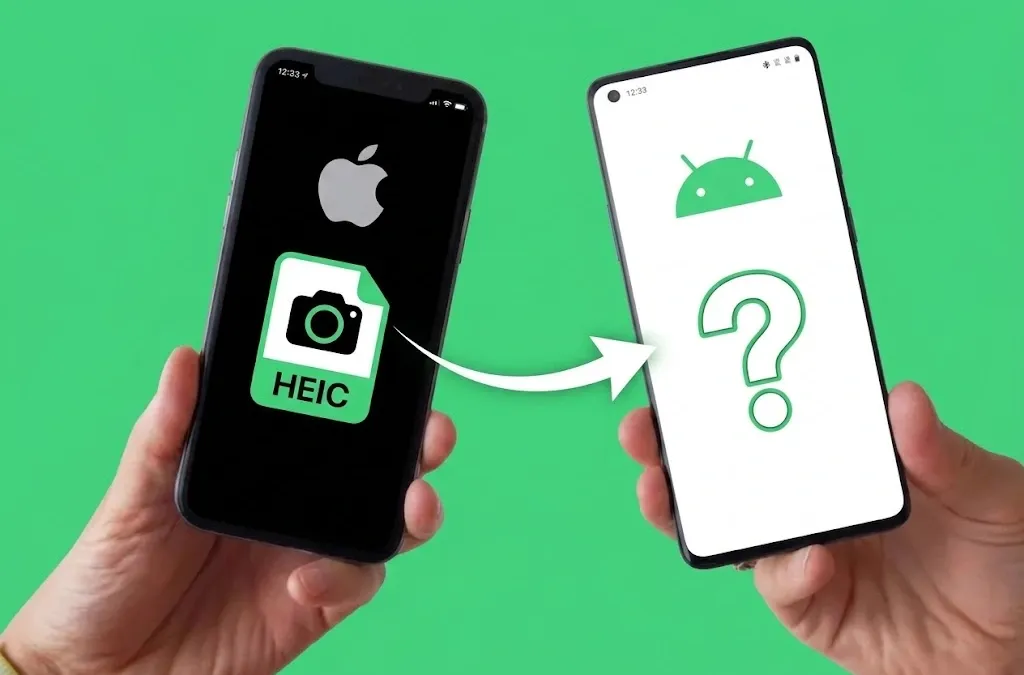
Table of Contents
- What HEIC Actually Is (And Why Your iPhone Uses It)
- The Problem: Why Android Users Can’t Always Open Your HEIC Photos
- Option 1: Stop Your iPhone From Shooting HEIC (The Nuclear Option)
- Option 2: Convert HEIC to JPEG Before Sending (And Why It Is Not Always Ideal)
- Option 3: Share HEIC As-Is Without Converting (The Best Method for Groups)
- Can I Create a Shared Album That Works on Both iOS and Android?
- What Are the Best Alternatives to AirDrop for Sharing Photos With Android Users?
- Step-by-Step: Share HEIC Photos With an Android User Right Now
You took 200 photos on a 4-day trip. Your iPhone stored every one of them as a HEIC file, because that is what iPhones do. You get home, share the folder with your Android-using friends, and half of them can’t open anything. Broken thumbnails, “Unsupported format” errors, or one person just says they’ll look at them later and never does.
This is not a user error. It is a format compatibility gap that Apple and Google have not fully closed, and it trips up millions of people every time a mixed-device group tries to share photos after an event.
Here is what HEIC actually is, why Android struggles with it, and the three ways to fix the problem ranked by how much quality you actually lose.
What HEIC Actually Is (And Why Your iPhone Uses It)
HEIC stands for High Efficiency Image Container. Apple switched iPhones to this format in 2017 with iOS 11. The short version: HEIC files are roughly 40-50% smaller than JPEGs of equivalent quality, which means your iPhone stores about twice as many photos in the same storage space.
But HEIC is more than a compression format. It is a container, meaning a single .heic file can hold more than one image. That is why Live Photos work the way they do: the still frame and the short video clip are packaged together in a single HEIC container. The same goes for burst shots, Portrait mode depth maps, and HDR data. When you convert a HEIC file to JPEG, you get a flat static image. The Live Photo is gone. The depth map is gone. The full color data from the HDR capture may be truncated.
Your iPhone uses HEIC because it lets you shoot more photos at higher quality without filling your storage in a week. The compatibility headache with Android is a side effect Apple decided was worth the trade-off. You may disagree, especially after the third time a friend tells you they cannot open your photos.
The Problem: Why Android Users Can’t Always Open Your HEIC Photos
Android added OS-level HEIC support in Android 10. On paper, any phone running Android 10 or newer should be able to open HEIC files. In practice, it depends on the gallery app. Google Photos handles HEIC reliably. Samsung’s default Gallery app handles it on newer devices. But older Samsung models, Xiaomi Gallery, OnePlus Gallery, and many third-party apps pull from their own image decoders rather than the system’s, and those decoders may not support HEIC.
Older Android devices (anything running Android 9 or below) have no native HEIC support at all.
The result is unpredictable. Your friend with a Samsung Galaxy S24 might open the file just fine. Your other friend with an older Pixel or a budget Android from a regional carrier gets a broken image icon. And if someone sends the HEIC file through WhatsApp, the app itself may reject or silently convert it in a way that strips quality.
Three fixes exist. They are not equally good.
Option 1: Stop Your iPhone From Shooting HEIC (The Nuclear Option)
If you share photos with Android users regularly and never want to deal with this again, you can switch your iPhone to JPEG permanently.
Go to Settings > Camera > Formats and select Most Compatible. From that moment forward, your iPhone saves every new photo as a JPEG. Android users open them without any trouble.
What you gain: zero friction for recipients. Every photo you share will open on every device.
What you lose: 40-50% more storage consumed per photo. A JPEG of the same scene is roughly twice the file size of a HEIC. You also lose the Live Photo container (Live Photos still record but are stored differently), and you lose the HDR depth map data from Portrait mode shots.
This setting makes sense if you are a casual shooter who values simplicity and never reviews photos on a computer. It is a bad trade for anyone who cares about preserving their camera’s full output (e.g. a photographer sharing trip photos, a parent building a collection of their kid’s milestones), anyone archiving memories rather than just forwarding them.
Option 2: Convert HEIC to JPEG Before Sending (And Why It Is Not Always Ideal)
If you want to keep shooting HEIC on your iPhone but need to send specific photos to Android users, conversion is the middle path.
iOS auto-converts in some situations. When you share a photo from the Photos app via email, iOS often transcodes it to JPEG automatically before sending. The same happens when you plug your iPhone into a Mac or PC with the “Automatic” transfer setting enabled under Settings > Photos. This is convenient for individual photos but inconsistent as it does not happen in every app and it does not work for batch exports.
Online converters handle batches. Sites like HEICIMG.com let you upload a batch of HEIC files in your browser and download JPEGs. If you need to convert 50 photos at once, this works. The downside: you are uploading your photos to a third-party server, and the quality loss from re-encoding is real. HEIC uses its own compression algorithm. Converting to JPEG re-compresses the image using a different algorithm. Every re-encoding generation loses a small amount of detail. For casual snapshots this is invisible. For a shot at full 48MP or a carefully composed travel photo, the difference is measurable.
The Shortcuts app automates it. You can build a Shortcut on your iPhone that takes selected photos, converts them to JPEG, and saves them to your camera roll. Useful if you do this frequently but still not lossless.
The honest summary: conversion is the right move when you need to send a few specific photos to someone right now and you do not care about keeping the original HEIC data. It is the wrong move when you have 200+ photos from a group trip and you want everyone to have the best possible versions.
Option 3: Share HEIC As-Is Without Converting (The Best Method for Groups)
This option is the one competitors almost never mention, and it is the only one that preserves everything.
Upload the original HEIC files to a platform that handles cross-device rendering itself. The platform stores your HEIC file untouched, generates an optimized preview (usually WebP or JPEG) that any browser can display, and lets the recipient download the original HEIC if they want it. No conversion happens on your end. No quality is lost. The Live Photo data stays in the file.
ShareThePic works this way. When you upload a HEIC photo to a shared album, the platform stores the original file (i.e. HEIC format, original resolution, full EXIF metadata including GPS and capture time) and serves a web-friendly preview so Android users see the photo correctly in their browser. When an Android user downloads the photo, they can get either the optimized preview or the original HEIC file. The EXIF data is preserved and injected on download, so the photo’s capture timestamp stays accurate.
This is the only method that is genuinely lossless. No re-encoding, no format swap, no missing Live Photo layer. And because the album is browser-based, the Android user does not need to figure out how to open a HEIC file locally as the platform already rendered it correctly for them.
If you have a group of 15 people from a trip and 8 of them are on Android, share the album link instead of the files. Create your free shared photo album and skip the conversion step entirely.
Can I Create a Shared Album That Works on Both iOS and Android?
Yes. A browser-based shared album is the clearest answer to this question.
iCloud Shared Albums are the first thing iPhone users reach for. The limitation: Android users can open the iCloud web link and view photos, but they cannot upload their own photos without an Apple ID. In a mixed group, that locks Android users out of contributing. Half the group’s memories stay on their phones.
Google Photos shared albums work on both platforms and preserve original quality. The catch is that every contributor needs a Google account. Google Photos also requires the app for the best upload experience. For a casual group of friends after a concert or a company outing where half the attendees will never use Google Photos again, asking everyone to sign into Google before they can share a photo is a friction point that costs you contributions.
ShareThePic takes a different approach. The organizer creates the album. A link goes out in a group chat (WhatsApp, iMessage, email, anything). Anyone who opens the link starts downloading or uploading from their phone’s browser. No app install for iOS users. No app install for Android users. HEIC files from iPhones are stored natively. JPEG files from Androids are stored natively. Everyone downloads the originals in whatever format their camera captured.
What Are the Best Alternatives to AirDrop for Sharing Photos With Android Users?
For different scenarios, different tools make sense.
Quick Share (Google) works for fast, nearby transfers. If you are next to your Android-using friend right now and want to send 10 photos, Quick Share is fine. It requires both devices to be nearby and does not create a shared group album.
LocalSend is the open-source, cross-platform AirDrop equivalent. It uses your local Wi-Fi network to transfer files directly between devices with no cloud upload. The quality is lossless. The limitation: everyone needs to be on the same network at the same time. That works in your living room. It does not work when your vacation group has scattered to three different cities.
A browser-based shared album is the right answer when you need a group of people to contribute photos from different devices after an event has ended. You share one link. People upload when they get home. The album fills itself. Nobody needs to be in the same room or on the same network.
Step-by-Step: Share HEIC Photos With an Android User Right Now
This takes under two minutes and preserves every pixel.
1. Create the album. Go to sharethepic.app and sign up with Google or email. Tap “Create Album” and name it something your group will recognize (i.e. the trip name, the event, the date). You get a unique link and a QR code.
2. Upload your HEIC photos. Add your photos directly from your iPhone’s camera roll. HEIC, JPEG, Live Photo, ProRAW, all supported. No conversion step, no format change.
3. Share the link. Drop the album link in any group chat. Every person who opens it, on any device, sees a fully rendered gallery in their browser. Android users see the photos correctly rendered even though the originals are HEIC files. Anyone who wants to download the full-resolution originals gets them in the original format.
Stop converting your photos and losing quality every time an Android user is in your group. Create your free shared photo album and share HEIC files exactly as your iPhone captured them.
Frequently Asked Questions
Can I create a shared album that works on both iOS and Android?
Can I create a shared album that works on both iOS and Android?
Yes. A browser-based shared album is the easiest way to include both iOS and Android users. ShareThePic lets you create an album and share a link. Both iPhone and Android users open the link in their mobile browser, create a free account, and upload photos directly without downloading an app. HEIC files are supported natively, so no conversion is needed.
What are the best alternatives to AirDrop for sharing photos with Android users?
What are the best alternatives to AirDrop for sharing photos with Android users?
For one-to-one nearby transfers, Google Quick Share and LocalSend are reliable. For group photo collection after an event, a browser-based shared album like ShareThePic is the best option: everyone uploads from their phone's browser, no app install is required, and HEIC files are stored in their original format.
Do HEIC files lose quality when converted to JPEG?
Do HEIC files lose quality when converted to JPEG?
Yes, technically. Converting HEIC to JPEG re-encodes the image using a different compression standard, which causes a small quality loss. For most casual photos the difference is not noticeable, but for high-resolution shots or images with HDR data, the loss can be visible. The lossless alternative is to share the original HEIC file via a platform that handles cross-device rendering itself.
Can Android open HEIC photos from iPhone?
Can Android open HEIC photos from iPhone?
Partially. Android 10 and newer include OS-level HEIC support, but individual gallery apps and older manufacturer software may not use the decoder. Android 9 and below have no native HEIC support at all. The safest approach is to share through a browser-based platform that renders a compatible preview while keeping the original HEIC file intact.