EXIF Data Explained: Why Your Photo's Metadata Matters and How to Preserve It

Last Updated: September 1, 2026
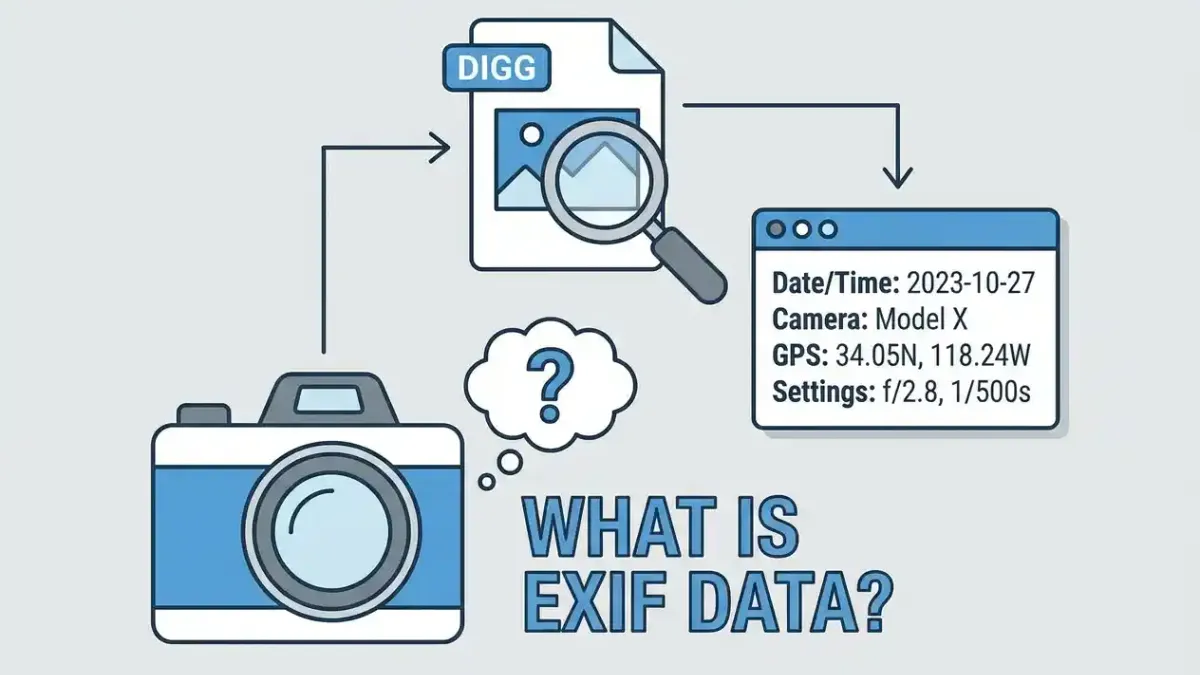
Table of Contents
- What Is EXIF Data? (The 30-Second Explanation)
- What’s Actually Inside Your Photo’s Metadata?
- Camera Settings
- Date and Time
- GPS Location
- Why Losing EXIF Data Is Worse Than You Think
- Your Album Timeline Breaks
- You Lose Proof of Where You Were
- Photographers Lose Their Learning Record
- Which Apps Strip Your EXIF (and Which Ones Don’t)
- How to Share Photos Without Losing EXIF Data
- Use Full-Resolution File Transfer (Not Photo Mode)
- Use a Sharing Service That Preserves Metadata
- What to Avoid
- How to View (or Remove) EXIF Data
- The Bottom Line: When to Preserve, When to Strip
Every photo you take carries a hidden layer of information you can’t see in the image itself. It records exactly when you pressed the shutter, what camera you used, what settings you chose, and, if your location was on, the precise GPS coordinates of where you stood.
That information is called EXIF data. And most people only discover it exists the moment something goes wrong: a shared album where every photo is out of order, a trip where the location pins vanished, or a photography portfolio where all the technical settings are missing.
Here’s what EXIF data actually is, why losing it hurts more than most people realize, and exactly how to share photos while keeping it intact.
What Is EXIF Data? (The 30-Second Explanation)
EXIF stands for Exchangeable Image File Format. It’s a standard that defines how cameras and smartphones embed metadata directly into image files - specifically JPEG, TIFF, and HEIF formats.
Think of it as a logbook stitched into the file itself. Every time you tap the shutter, your phone or camera writes a small bundle of data alongside the actual image pixels. That bundle travels with the file wherever it goes unless something strips it out along the way.
The “something” that strips it out is usually the app or platform you used to share it.
What’s Actually Inside Your Photo’s Metadata?
EXIF data covers three main categories:
Camera Settings
This is the technical record of the shot. It includes:
- Camera make and model (e.g., Apple iPhone 15 Pro, Canon EOS R6)
- Shutter speed (e.g., 1/500s)
- Aperture (e.g., f/2.8)
- ISO sensitivity (e.g., ISO 400)
- Focal length (e.g., 35mm)
- Flash status (fired or suppressed)
- White balance setting
For photographers, this is the most valuable part. When you look back at a great shot and want to understand why it worked (or a blurry one and want to understand why it didn’t) these fields tell you exactly what happened.
Date and Time
The DateTimeOriginal tag records the exact moment the shutter fired. Not when you exported the file. Not when you uploaded it. The precise second you took the photo.
This is what keeps your photos in order. Shared albums that sort chronologically rely entirely on this timestamp. Strip it, and the album reverts to sorting by upload time, meaning your sunrise shot lands at the end because you uploaded it last.
GPS Location
If your phone had location services enabled when you took the photo, the EXIF data includes:
- Latitude and longitude (precise enough to identify the exact building)
- Altitude
- Sometimes the bearing (the direction the camera was pointing)
This is what makes photo maps possible. It’s also the data that raises the most legitimate privacy concerns (more on that below).
Why Losing EXIF Data Is Worse Than You Think
Most people accept compression as a trade-off. Fewer pixels, sure, but at least it looks close enough. Losing EXIF data feels invisible until you run into one of these three problems.
Your Album Timeline Breaks
You’ve just returned from a group trip. A dozen people upload their photos to a shared album. The album sorts by “date taken”, except half the photos have no date taken anymore because they were sent through WhatsApp first, which stripped the metadata. Now the album is a jumble of upload times. Photos from day three appear before photos from day one. The story of the trip is scrambled.
WhatsApp removes EXIF data from photos sent through standard photo mode. So does iMessage when it compresses. So does Instagram. Every time a photo passes through one of those pipelines, its original timestamp is either erased or replaced with the processing time.
ShareThePic keeps EXIF metadata intact. When photos go in, whether from an iPhone shooting HEIC or a Sony mirrorless shooting RAW, the original capture timestamp is preserved. The album sorts correctly, and your 4-day trip looks like a 4-day trip, not a pile of random uploads.
You Lose Proof of Where You Were
A travel photographer returns from a 3-week trip through Portugal. Every landmark, every quiet village, every viewpoint. They shot 2,000 photos and relied on GPS to tag each location automatically in Lightroom.
They shared some shots via Instagram for feedback from friends. Instagram stripped the GPS. Now those files have no location data. The Lightroom import works, but 200 shared-back images are missing their map pins. Hours of manual tagging to recover what the original files already had.
GPS location in EXIF data isn’t decorative. For anyone who maps their travel photography, it’s part of the archive.
Photographers Lose Their Learning Record
There’s a practice among photographers: reviewing their EXIF data after a shoot to understand what worked. Which aperture nailed the depth of field? Which ISO pushed into noise territory? Which shutter speed was too slow?
When photos pass through a compression or stripping pipeline, that learning record disappears. You’re left looking at a result without the recipe.
Which Apps Strip Your EXIF (and Which Ones Don’t)
Here’s a practical breakdown of how the most common platforms and tools handle your metadata:
| Platform / Method | Strips EXIF? | Notes |
|---|---|---|
| Yes | All metadata removed on upload | |
| Yes | Stripped from public copies | |
| X (Twitter) | Yes | Metadata removed for all uploads |
| WhatsApp (photo mode) | Yes | Compressed + stripped by default |
| WhatsApp (document mode) | No | Sends original file; metadata preserved |
| iMessage (compressed) | Yes | Low-bandwidth mode strips metadata |
| iMessage (original quality) | Partial | Timestamp often preserved; GPS sometimes stripped |
| Snapchat | Yes | All metadata removed |
| Google Photos | No | Preserves metadata when syncing between your devices |
| Flickr | No | Designed to keep technical metadata intact |
| Google Drive / Dropbox | No | Original files preserved when shared via link |
| Email (file attachment) | No | Attaching and downloading preserves original file |
| AirDrop | No | Device-to-device transfer; nothing processed |
| ShareThePic | No | EXIF data including GPS and timestamps fully preserved on upload and download |
The pattern is clear: platforms designed for social broadcasting strip everything. Platforms designed for file storage or direct transfer preserve everything.
How to Share Photos Without Losing EXIF Data
Now the practical part. If you need your EXIF data to survive the journey, here are your options ranked by reliability.
Use Full-Resolution File Transfer (Not Photo Mode)
In WhatsApp or Telegram, instead of tapping the camera icon to attach a photo, tap the document icon (or “File” option). This bypasses the image processing pipeline and sends the file as-is. The recipient gets the original file with all metadata intact.
The downside: the preview looks like a document, not a photo. But the file is complete.
Use a Sharing Service That Preserves Metadata
For group sharing, this is where most options fall short. Google Photos requires app sign-ins. iCloud excludes Android. Drive links aren’t built for collaborative albums.
ShareThePic handles this differently. Upload photos directly from your browser, no app required. The platform preserves the original EXIF data, including capture timestamps and GPS coordinates, on both upload and download. Albums sort automatically in the correct timeline order because the capture timestamps are intact.
If you’re collecting photos from a group (a trip, a wedding, a bachelorette party) create your free shared photo album and contributors upload directly. No compression, no metadata loss, no timeline scrambling.
What to Avoid
Skip any pipeline that re-processes the image:
- Don’t upload to social media and re-download
- Don’t screenshot to “re-save” a photo (screenshots create new files with no original metadata)
- Don’t use “save image” on a social media post - you’re saving a stripped, compressed copy
How to View (or Remove) EXIF Data
Sometimes you want to inspect what’s in a file. Sometimes you want to remove it before sharing with strangers.
To view EXIF data:
- Windows: Right-click the image > Properties > Details tab
- Mac: Open in Preview > Tools > Show Inspector (or use Photos > Get Info)
- iPhone: The native Photos app shows date and location; for full technical data, use a free app like Exif Viewer
- Online: jimpl.com or exifdata.org let you drag and drop any image to read its metadata instantly
To remove EXIF data before sharing publicly:
- Windows: Right-click > Properties > Details > “Remove Properties and Personal Information”
- Mac: Export in Preview with “Remove location information” checked
- Android: Apps like Scrambled Exif strip metadata before you send
- ExifTool (any platform): The command-line tool used by professionals, free and precise (useful when you want to strip GPS but keep timestamps)
The key distinction: removing EXIF before sharing publicly is smart privacy practice. Stripping it from your own archive is something you almost certainly don’t want to do.
The Bottom Line: When to Preserve, When to Strip
Here’s the decision framework that competitors rarely give you directly:
Preserve EXIF when:
- Archiving your own photos (always)
- Sharing with photographers who’ll use your settings as reference
- Contributing to a shared trip or event album where chronological order matters
- Syncing between your own devices
Strip EXIF when:
- Posting publicly on social media (platforms will do this anyway, but do it first for certainty)
- Sharing photos of your home or workplace with people you don’t fully trust
- Sending original files to someone you’ve just met online
The location data in EXIF can be precise enough to identify a specific apartment building. That’s useful context for your own archive. It’s a different story if you’re posting a photo of your living room to a public forum.
For group sharing with people you know (i.e. a trip crew, a wedding party, 40 relatives at a reunion) the right move is to preserve everything and use a platform that keeps it intact.
Create your free shared photo album and the EXIF stays with every photo. The timeline sorts itself. The location pins survive. Your memories keep their context.
That’s what photo sharing should look like.
Frequently Asked Questions
How do I share photos and keep the EXIF data (date, location, camera settings)?
How do I share photos and keep the EXIF data (date, location, camera settings)?
To share photos without losing EXIF data, avoid sending through social media or standard messaging photo modes. Instead, send photos as file attachments (not images) via WhatsApp or Telegram, use cloud storage like Google Drive or Dropbox with direct file links, or use a dedicated platform like ShareThePic that explicitly preserves EXIF metadata on upload and download.
What information is stored in EXIF data?
What information is stored in EXIF data?
EXIF data stores camera make and model, shutter speed, aperture, ISO, focal length, flash status, the exact date and time of capture, and (if location services were enabled) precise GPS coordinates including latitude, longitude, and altitude.
Which apps strip EXIF data when you share photos?
Which apps strip EXIF data when you share photos?
Instagram, Facebook, X (Twitter), Snapchat, TikTok, and WhatsApp (when sending as a standard photo) all strip EXIF data by default. Flickr and Google Photos preserve metadata. Cloud storage services like Google Drive, Dropbox, and OneDrive preserve EXIF when you share the original file link.
Why does losing EXIF data scramble my shared album timeline?
Why does losing EXIF data scramble my shared album timeline?
When a platform strips EXIF data, it removes the original capture timestamp. Shared albums that sort photos chronologically then fall back to the file upload time instead of the capture time, causing photos to appear in upload order rather than the actual sequence they were taken.
How can I view the EXIF data on a photo?
How can I view the EXIF data on a photo?
On Windows, right-click any image, select Properties, then open the Details tab. On Mac, open the photo in Preview and go to Tools > Show Inspector. On iPhone, the native Photos app shows location and date; for full technical data, use a free app like Exif Viewer. Online, tools like jimpl.com let you drag and drop any image to read its metadata.