How to Share Bachelorette Party Photos Without Quality Loss

Last Updated: September 17, 2026

Table of Contents
- The Two Problems Every Maid of Honor Faces With Photos
- Problem 1: Quality Gets Destroyed Before Anyone Sees It
- Problem 2: Privacy Goes Out the Window
- Why iPhones + Androids Make Everything Harder
- The Setup: What to Do Before the Weekend Starts
- During the Trip: How to Actually Get Everyone’s Photos
- After the Trip: Wrapping Up the Album
- What to Send Your Group Chat (Copy and Paste This)
- How to Share Bachelorette Photos With People Who Don’t Have the Same Phone
Your squad just wrapped three days in Nashville, Palm Springs, or wherever the bride chose. Between the pool party, the bar crawl, and the matching sashes, 600 photos exist across 12 different phones.
Now comes the part no one planned for: actually collecting all of them.
Left to default behavior, here’s what happens. Everyone texts their “best” shots to the group chat. WhatsApp compresses them into smudgy 700KB thumbnails. The bride screenshots a few on her phone and the originals disappear. Six months later she realizes she has no full-resolution photos from her own bachelorette weekend.
This guide covers how to avoid that, specifically for the bachelorette context where privacy and mixed devices are part of the equation.
The Two Problems Every Maid of Honor Faces With Photos
Bachelorette photo sharing has two distinct failure modes. Most solutions fix one and ignore the other.
Problem 1: Quality Gets Destroyed Before Anyone Sees It
The instinct is to share photos in the group chat. The group chat is convenient, everyone is already in it, and it feels immediate.
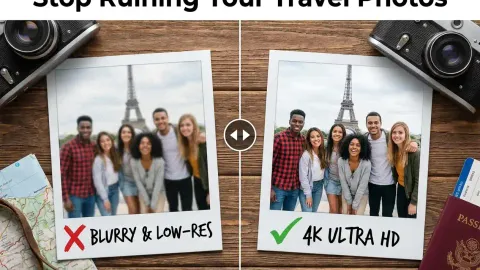
But messaging apps (WhatsApp, iMessage, Telegram in photo mode) compress images before sending. A 5MB photo from a modern iPhone camera becomes a 700KB file by the time it arrives on the other end. That’s roughly an 85% reduction in file size, which means visible loss of sharpness, color depth, and detail.
This matters more for bachelorette trips than most events because the photos often get printed. A compressed WhatsApp file printed at 5x7 inches will look visibly soft. At 8x10, it will look blurry.
Problem 2: Privacy Goes Out the Window
The second problem is privacy. Bachelorette weekends are personal by definition. The photos from a pool day or a night out aren’t meant for public Instagram feeds or Facebook posts accessible to the bride’s coworkers and family members.
Instagram hashtags (the old-school solution some planners still suggest) make every photo public unless each guest’s account is private, which creates its own mess. Social media platforms also compress images aggressively and strip metadata.
For a private weekend, you need a private collection method. The group chat is not private in the meaningful sense: it lives on every participant’s phone, gets backed up to iCloud or Google Drive, and is accessible to whoever borrows someone’s phone.
Why iPhones + Androids Make Everything Harder
A typical bachelorette squad is mixed. The bride has an iPhone. Her college roommate has a Samsung. The maid of honor has an iPhone 16. One bridesmaid bought a Pixel last year. One is still on Android 11.
This matters because every “easy” solution breaks on mixed devices:
- iCloud Shared Albums: Android users can view via browser but cannot upload photos. If even one bridesmaid is on Android, she’s excluded from contributing.
- AirDrop: iPhone-only. Android users can’t receive or send.
- iMessage: Compresses images when sent to Android numbers (blue bubble to green bubble = significant quality loss).
- Google Photos shared albums: Requires a Google account to contribute. iPhone users have Google accounts but often aren’t logged in. Sign-up friction kills participation.
A browser-based link sidesteps every one of these. There’s no platform loyalty check. Safari works. Chrome works. Samsung Internet works. The link opens a web page and anyone can upload from their camera roll.
The Setup: What to Do Before the Weekend Starts
Do this before the first car arrives at the airport.
1. Create your shared album. ShareThePic takes about 10 seconds. You get a shareable link and a QR code. Name the album something obvious (“Jen’s Bach Weekend” or “Nashville Bachelorette”).
2. Drop the link in the group chat before the trip. Don’t wait until you’re poolside. Send it before or as soon as the trip starts with a single-line note:
“Hey everyone, I’ve set up a shared album for the trip. Click this link to add your photos any time during the weekend. No app needed, just click and upload: [link]”
3. Screenshot the QR code (optional). Save it to your camera roll. If you want to go the extra mile, print it on a small card and stick it somewhere visible at the house or hotel room.
That’s the setup. You’ve now created a private, full-resolution photo collection point that works for every phone in the group.
During the Trip: How to Actually Get Everyone’s Photos
The key is to prompt people in the moment, not afterward.
After the pool party when everyone’s lounging around: “Does anyone want to upload their pool photos to the album real quick while we’re getting ready?”
After the group dinner: “I want to grab everyone’s shots from tonight before they end up buried in your camera roll. The link is in the chat, takes 2 minutes.”
The reason this works better than asking afterward is timing. In the moment, the photos are right there and the memory is fresh. Two weeks later, people have 400 new photos on their phone, the trip feels distant, and finding and uploading 30 specific photos feels like a project.
You don’t need 100% participation in real time. You need the habit established so people think of the album when they’re uploading.
After the Trip: Wrapping Up the Album
Within 24 hours of the trip ending, send one final message:
“The bachelorette album is live! Click the link to see everyone’s photos and upload anything you haven’t added yet. You can also download the whole collection: [link]”
People open this because they’re curious to see what photos exist beyond their own. That curiosity drives them to also upload the ones they’d forgotten to share.
Once the album is complete, every guest can download the full collection as a single zip file (original resolution, all photos from all contributors, in one click).
No chasing. No screenshots. No “can you AirDrop me that photo from the boat?” three months later.
Create your free shared photo album before your next bachelorette weekend and the whole collection takes care of itself.
What to Send Your Group Chat (Copy and Paste This)
Here’s a ready-to-use message for the group chat, for each phase of the weekend:
Before the trip:
“Hey girls! I set up a shared photo album for the weekend so we can all get each other’s photos in full quality. No app download needed, just tap the link and upload from your camera. I’ll share it again once we’re there: [your ShareThePic link]”
During the trip:
“Adding a reminder: our photo album link is in the pinned message. Takes 2 minutes, and everyone can download the whole collection after the weekend.”
After the trip:
“Okay the album is done! All our photos are in here at full resolution; tap the link and you can download everything, or add any last shots you forgot. [your ShareThePic link]”
How to Share Bachelorette Photos With People Who Don’t Have the Same Phone
The short answer: use a link, not a platform.
Platform-based sharing (iCloud, Google Photos) requires everyone to have the right account in the right ecosystem. Link-based sharing skips that entirely. A URL opens in whatever browser is on the phone. No account. No download. No platform check.
For a 12-person bachelorette trip with a mix of iPhones and Androids, the workflow is:
- Organizer creates a ShareThePic album on her iPhone.
- She shares the link to the group chat.
- Every guest (iPhone, Android, Pixel, Galaxy) taps the link in whatever messaging app they use.
- A web page opens in their native browser.
- They tap “Upload Photos,” select from their camera roll, and they’re done.
The photos land in the album at 100% original resolution. The organizer can download everything in a zip after the trip. The bride gets full-resolution files for printing, framing, and the wedding slideshow.
That’s it. Same link, any phone, no quality loss.
Frequently Asked Questions
How do I share photos with people who don't have the same phone?
How do I share photos with people who don't have the same phone?
Use a browser-based shared album like ShareThePic. Guests on iPhones use Safari, guests on Android use Chrome or Samsung Internet; everyone taps the same link and uploads directly. No app store, no account, no ecosystem lock-in.
How do I keep bachelorette party photos private?
How do I keep bachelorette party photos private?
Avoid social media hashtags and WhatsApp group chats. Use a private, invite-only album with a unique link that you control. ShareThePic albums are private by default (only people with the link can view or upload photos).
What is the best way to collect bachelorette party photos without an app?
What is the best way to collect bachelorette party photos without an app?
Create a free shared album on ShareThePic before the trip starts. Share the link in your bachelorette group chat. Guests tap the link and upload directly from their phone's browser (no download required). You receive everyone's full-resolution originals in one place.
Does WhatsApp compress photos when sharing in a group chat?
Does WhatsApp compress photos when sharing in a group chat?
Yes. WhatsApp compresses photos by up to 80% when sent as standard images in group chats. You can partially avoid this by sending photos as 'Documents' instead, but even then the group chat format makes photos hard to find and download later.
Can I share bachelorette photos between iPhones and Androids?
Can I share bachelorette photos between iPhones and Androids?
Yes. A browser-based album works on both platforms. Guests on iPhones use Safari, Android users use Chrome. Everyone accesses the same album link and can upload from their camera roll. No Apple ID or Google account required.