How to Share Full-Resolution Photos Online Without Losing Quality

Last Updated: August 27, 2026
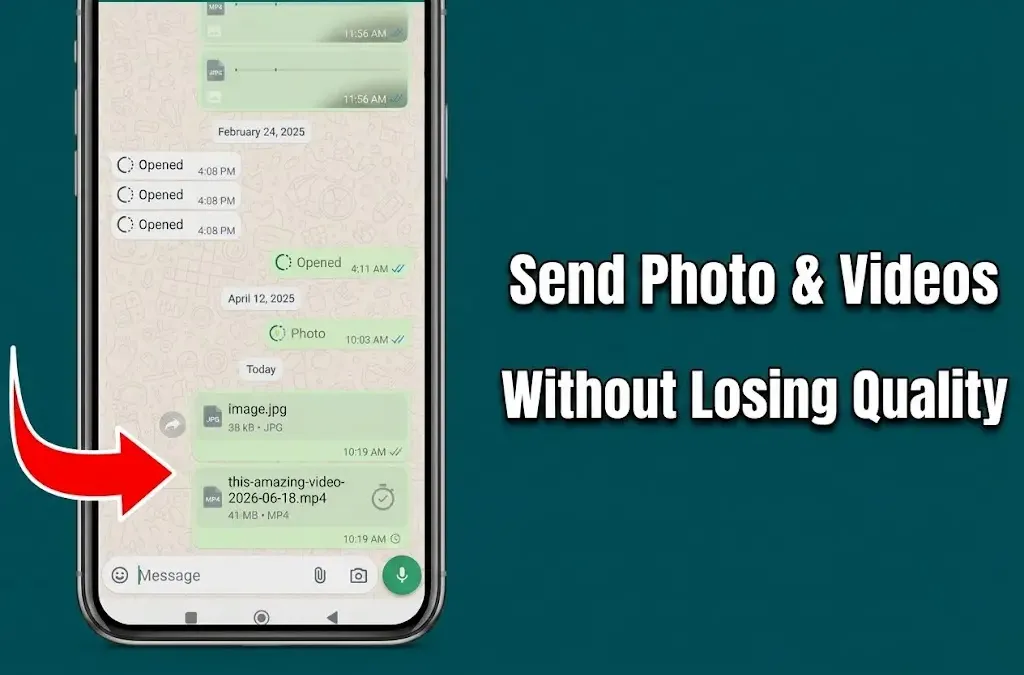
Table of Contents
- Why Every App You’re Using Is Compressing Your Photos
- What “lossy compression” actually means for your shots
- The worst offenders (with exact numbers)
- How to Maintain Photo Sharing Quality
- The 5 Ways to Share Full-Resolution Photos Online
- 1. Shared photo albums (best for groups)
- 2. Cloud storage folder links
- 3. File transfer services (WeTransfer, Smash, SwissTransfer)
- 4. Send as a Document in messaging apps
- 5. AirDrop / Quick Share (offline, same room)
- The Hidden Problem: Quality at Download, Not Just Upload
- EXIF metadata and what you lose when it’s stripped
- What’s the Best Option for Sharing Photos for Printing?
- The Fastest Way to Collect Full-Resolution Photos from a Group
- Quick Reference: Which Method Should You Use?
Photo sharing quality comes down to one choice: are you sending the file itself, or letting an app re-encode it first? Messaging apps, social platforms, and even some cloud tools quietly shrink and re-compress your photos before they reach anyone else. A shared link to the original file is the only way to guarantee what you send is what they get.
You took a sharp, vivid photo on your phone. 48 megapixels. Perfect exposure. Then you sent it to someone. By the time they opened it, it had been shrunk, flattened, and stripped of its original detail, and neither of you even noticed it happening.
This is the default behavior of almost every sharing method people use. WhatsApp compresses photo files by up to 80% in file size. Email clients resize anything over a few megabytes. Even iMessage, when it crosses cellular data, applies its own quiet downgrade.
If you care about your photos (for printing, for archiving, for the memories inside them), this guide is for you. Here’s exactly how lossless photo sharing works, which methods actually preserve your original files, and which ones are secretly ruining your shots.
Why Every App You’re Using Is Compressing Your Photos
There’s a simple reason compression exists: phones generate enormous files. A single RAW photo from a modern phone can be 25MB or more. Multiply that by a group of 10 friends sending photos from a weekend trip, and you’re pushing 500MB through a messaging app that was designed to be fast on a 3G connection.
So apps compress. They don’t ask. They don’t tell you. They just do it.
What “lossy compression” actually means for your shots
There are two types of compression: lossless and lossy. Lossless compression (like ZIP) reduces file size without throwing away any data. Lossy compression (what WhatsApp, iMessage, and most social platforms use) permanently removes image data to shrink the file. Once that data is gone, it cannot be recovered.
In practice, lossy compression means:
- Fine details in shadows and highlights get smoothed over
- Subtle textures in skin, fabric, or foliage become muddy
- Small text in photos becomes unreadable
- Photos that looked crisp on your phone look blurry printed at 8x10
The worst offenders (with exact numbers)
- WhatsApp (standard photo send): Compresses photos heavily, often reducing a 4MB file to under 500KB. Also strips EXIF metadata, meaning the date, time, and location data embedded in your photo is deleted.
- iMessage (over cellular): Apple applies compression automatically when sending over mobile data. On Wi-Fi, it’s better, but still not guaranteed original quality.
- Email: Most providers cap attachments at 25MB and automatically downscale images above that. Gmail compresses images embedded inline.
- Facebook / Instagram: Both platforms resize and re-encode images aggressively. Instagram caps uploads at 1080px wide regardless of original resolution.
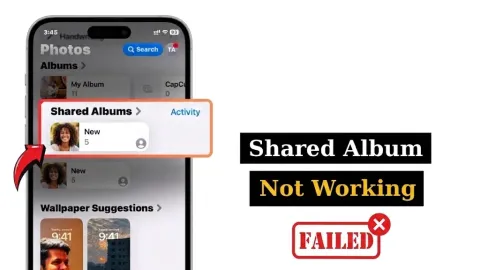
- iCloud Shared Albums: Photos are downscaled to 2048 pixels on the long edge. That’s fine for viewing on a screen, but it’s not fine for printing larger than a 5x7.
How to Maintain Photo Sharing Quality
The short version: never let the sharing method touch the file. Any app that re-encodes, resizes, or “optimizes” your photo before delivery is degrading your photo sharing quality, whether it tells you or not. The fix is to use a method that transfers or stores the original bytes unchanged, like a folder link, a file transfer service, or a shared album built for original downloads. If a method doesn’t explicitly say it preserves the original file, assume it doesn’t.
The 5 Ways to Share Full-Resolution Photos Online
Here’s the actual breakdown of what works, what it costs, and when to use it.
1. Shared photo albums (best for groups)
If you’re collecting photos from multiple people (a trip, a wedding, a birthday weekend), a shared photo album is the only method that scales without turning into chaos.
Services like ShareThePic let you create a shared album in seconds. You share one link. Everyone in your group (iPhone users, Android users, anyone) uploads their photos directly from their mobile browser with no app install. Photos are stored in full original resolution, no compression applied. When anyone downloads, they get the exact file that was uploaded: original dimensions, original file size, EXIF metadata intact.
For a 12-person group trip where everyone has different phones, this is the only method that doesn’t collapse into a 40-message group chat where people forget to send their photos. Create your free shared photo album here.
2. Cloud storage folder links
For smaller batches, Google Drive, Dropbox, and iCloud all work well, as long as you use them correctly.
The key: upload your photos as files to a folder, then share a link to that folder. Do not use the “Share Photo” button inside Google Photos if you have Storage Saver mode enabled (that mode permanently downscales your originals). When your recipient clicks a folder link and downloads the file directly, they get the original.
The caveat: this works great for sending files to someone. It falls apart when you’re trying to collect photos from a group. Asking 15 people to upload to your Google Drive folder means 15 people need Google accounts, 15 people need permissions granted, and you’ll spend an hour managing access instead of looking at the photos.
3. File transfer services (WeTransfer, Smash, SwissTransfer)
For one-off transfers of a few large files, these services are excellent. WeTransfer’s free tier lets you send up to 3GB per transfer. Smash has no file size limit on its free plan. Neither service compresses your files (you upload the original, the recipient downloads the original).
The limitation is that these are one-directional: you send, they receive. You can’t collect photos from a group with WeTransfer without asking everyone to send you a separate link. For a post-event collection situation, this gets messy fast.
4. Send as a Document in messaging apps
This is the workaround most people don’t know about. In WhatsApp, instead of tapping the photo icon, tap the paperclip and choose “Document.” In Telegram, similarly, tap the paperclip and select “File.” This forces the app to treat your photo as a raw file attachment instead of routing it through the image-compression pipeline.
The result: your recipient gets the full original file. The downside is it’s fiddly, it’s not obvious to non-tech-savvy contacts, and for more than 5 or 6 photos it becomes impractical.
5. AirDrop / Quick Share (offline, same room)
If you and the recipient are physically in the same place, this is the gold standard. AirDrop between Apple devices transfers the original file with zero compression and zero quality loss. Android’s Quick Share (formerly Nearby Share) does the same.
No internet involved. No server-side processing. The file that leaves your phone is exactly the file that arrives on theirs, metadata included.
The obvious constraint: you both need to be in the same room. This doesn’t help you collect photos from friends who are scattered across time zones.
The Hidden Problem: Quality at Download, Not Just Upload
Here’s a distinction competitors consistently miss: the method you use to share matters both at upload time and at download time.
You might upload a full-resolution JPEG to Google Photos. So far so good. But if your recipient views it in Google Photos and “saves” it from the preview, they may be saving a compressed, resized preview image, not your original file. The original is still there, but they need to specifically choose “Download original” to get it.
This creates a false sense of security. People think they’ve shared their photos correctly. Then the print comes back looking soft and they can’t figure out why.
With a proper file-transfer approach (such as a folder link, a file transfer service, or a shared album that serves original downloads), the recipient always gets the original file, regardless of how they save it.
EXIF metadata and what you lose when it’s stripped
EXIF metadata is the invisible layer inside every photo: the date and time it was taken, the camera model, the GPS coordinates of the location. It’s what lets your photo app sort your shots chronologically and show you where they were taken on a map.
When WhatsApp compresses your photo, it strips this EXIF data entirely. So a photo taken on the 3rd day of your trip suddenly appears as if it was taken today, because the only timestamp left is the file’s modification date, not the original capture date.
ShareThePic preserves EXIF metadata in every uploaded original. When you download your photos, the GPS coordinates, capture timestamp, and camera model are all still there. Your album timeline stays in order, and your photos sort correctly in any app you use them in.
What’s the Best Option for Sharing Photos for Printing?
For printing, every pixel matters more than it does for screen viewing. A 4x6 print at 300 DPI requires roughly 1200x1800 pixels. A 24x36 poster at 300 DPI requires 7200x10800 pixels. At those sizes, compression artifacts that are invisible on a phone screen become very visible.
The rules for print-quality sharing are strict:
- Never send via social media or standard messaging photo sends
- Never screenshot a photo and send the screenshot
- Never use a service that processes or re-encodes images server-side
- Always confirm with the recipient that they’re downloading the original file, not saving from a preview
The safest options for print: a cloud folder link (Google Drive file download, not “view”), a file transfer service like WeTransfer, or a shared album service that explicitly serves the original file on download. ShareThePic falls into this last category (every download from a ShareThePic album is the original uploaded file, not a re-processed version).
The Fastest Way to Collect Full-Resolution Photos from a Group
Here’s the actual pain point most people run into. You went on a trip with 8 friends. Everyone took great shots. Now you want all of them in one place, at full quality, without spending the next three days texting people for their photos.
The classic approach: create a WhatsApp group and ask everyone to send their photos. What arrives: compressed versions in a chaotic scroll, some people forget to send theirs, the photos are out of order, and nobody actually looks at them.
The better approach: before the trip ends, share a single album link and ask everyone to upload their favorites while they’re still hyped. With ShareThePic, that link works on any phone, any browser, no account required for guests to join and upload. The album auto-sorts by capture time using EXIF data, so you get a chronological record of the whole trip.
20 people can upload 500 photos between them in 10 minutes. You don’t chase anyone. You don’t lose quality. The album sits at full resolution, ready to download as a bulk ZIP whenever you want to print a few.
Set up a shared trip album in 10 seconds. No app installs or signups required. Start a free album here.
Quick Reference: Which Method Should You Use?
| Situation | Best Method |
|---|---|
| Collecting photos from a group | Shared album (ShareThePic) |
| Sending 1-5 large files to one person | WeTransfer or Google Drive folder link |
| Sending from your phone to a friend nearby | AirDrop / Quick Share |
| Forced to use WhatsApp | Send as “Document” |
| Sharing with a photography client | Professional gallery (picdrop, Pixieset) |
| Sharing for printing | Folder link or shared album with original downloads |
The moment you stop texting photos and start sharing them through a method that actually preserves them, the difference in quality is obvious. Your photos deserve to survive the trip home intact. Create your free shared photo album and stop letting compression make that decision for you.
Frequently Asked Questions
What app lets me share original resolution photos online for free?
What app lets me share original resolution photos online for free?
ShareThePic lets you share and collect original resolution photos for free (no compression applied, no app install required for guests). Guests upload straight from their mobile browser. For one-off single files, WeTransfer also works well as a free transfer service.
What's the best way to send full-quality photos for printing?
What's the best way to send full-quality photos for printing?
For printing, every pixel counts. Avoid WhatsApp, iMessage standard photo sends, and email attachments (all of these compress the file before it reaches your lab). Use a cloud folder link (Google Drive, Dropbox) or a shared photo album like ShareThePic that preserves the original file on download. Never use a screenshot of the photo either, or you'll lose resolution immediately.
Does Google Drive compress photos?
Does Google Drive compress photos?
Google Drive does not compress photos when you upload them as regular files. However, if you use Google Photos' 'Storage Saver' mode, your originals are downscaled. To be safe, upload to Google Drive (not Google Photos), keep the file as-is, and share a folder link so recipients download the exact original file.
How do I stop WhatsApp from compressing my photos?
How do I stop WhatsApp from compressing my photos?
When sending in WhatsApp, tap the paperclip icon and choose 'Document' instead of selecting from your Photo Gallery. This sends the image as a raw file, bypassing WhatsApp's compression engine. Note that this works for single files; for large groups or batches, a shared album is a much cleaner solution.
How do I share photos with friends without losing quality?
How do I share photos with friends without losing quality?
Skip messaging apps entirely and use a shared link instead. Upload your photos to a platform like ShareThePic that stores the original file, then send the link to your friends. They download the exact file you uploaded, full resolution and EXIF metadata intact, instead of a compressed copy.