Photo Compression Compared: WhatsApp, iMessage, and Email

Last Updated: August 25, 2026
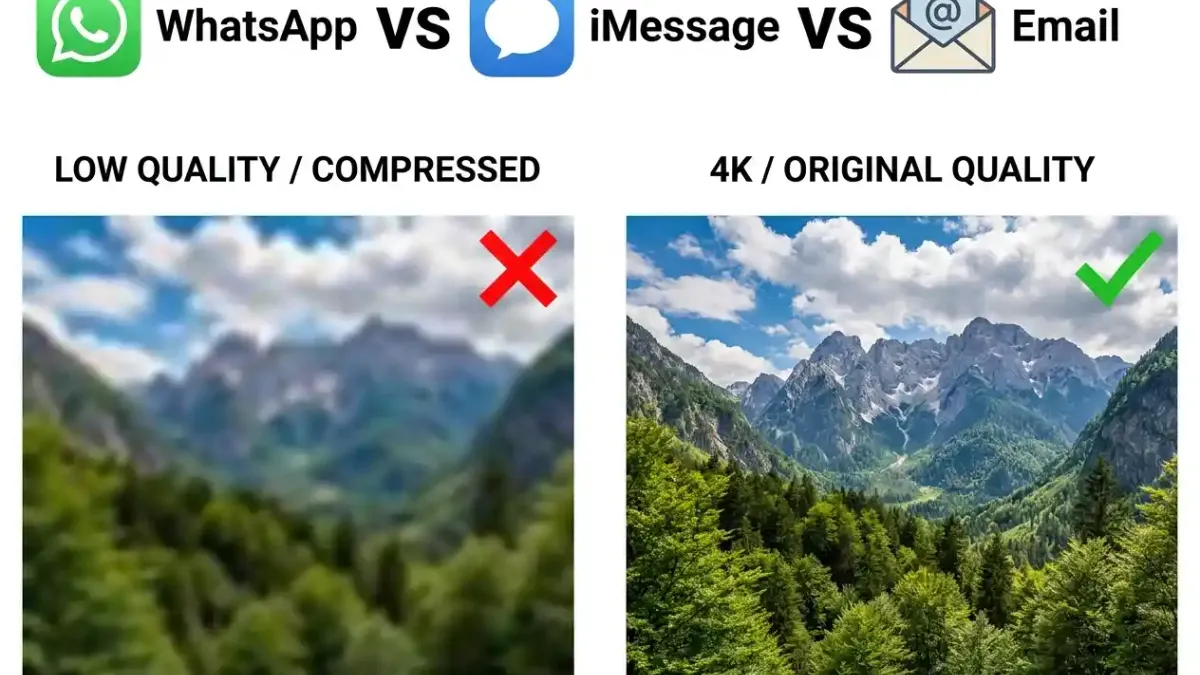
Table of Contents
- WhatsApp: The Worst Offender (By a Wide Margin)
- iMessage: Good for iPhone-to-iPhone, Broken for Everyone Else
- Email: Reliable for Individuals, Impossible for Groups
- The Comparison: What Actually Happens to Your Photos
- Does Sending Photos via Email Compress Them?
- How Much Quality Does WhatsApp Actually Remove?
- Why Do My Photos Lose Quality When I Send Them?
- The Better Option: Share the Original, Let Everyone Contribute
You spend two hours on a hike, nail a dozen shots you are proud of, and then ruin them in 3 seconds by hitting send. Not because anything went wrong. Because the app you chose made a choice you did not.
Every time you share a photo, something happens to it before it reaches the other person. That something ranges from “nothing at all” to “80% of the image data is gone.” The difference depends entirely on which app you used.
This is the definitive breakdown of how WhatsApp, iMessage, and email treat your photos before they arrive, including how to get original quality through each one if you need it.
WhatsApp: The Worst Offender (By a Wide Margin)
WhatsApp handles photos the way a budget printer handles documents: it gets the content across, but the fidelity is a distant second priority.
What happens by default: When you tap the photo picker in WhatsApp and select an image, the app resizes it so the longest side is approximately 1,600 pixels. It then applies heavy JPEG re-encoding. A photo that started at 12MB on your camera roll can arrive at the other end as a 150KB file. That is a file size reduction of 80-90%. The resolution loss is proportionally severe: a 48MP shot from a Samsung Galaxy or iPhone gets delivered as something closer to a 2MP image.
EXIF data: completely stripped. WhatsApp removes all metadata from photos shared in the standard mode. Gone are the GPS coordinates, the capture time, the camera model, and the lens settings. The recipient’s device treats the file as a brand-new photo created at the time of download. If you are collecting photos from a trip or an event and trying to sort them chronologically, WhatsApp just destroyed your timeline.
The HD workaround: WhatsApp added an “HD” mode toggle that you can enable when selecting a photo. HD mode increases the resolution cap to roughly 4,000 pixels on the long edge. The compression is less severe. But HD mode still re-encodes the image and it is still not lossless. If you need the original pixel-for-pixel file, HD mode is not it.
The document workaround: The one reliable way to send an original-quality photo through WhatsApp is to not send it as a photo at all. Use “Share as Document” and select the image file from your phone’s storage. When sent as a document, WhatsApp transmits the file without re-encoding it. EXIF data is preserved. Resolution is intact. The recipient gets the exact file. The downside: it is buried in the interface, most people do not know it exists, and it requires the recipient to manually save the file from the document tray rather than having it land in their camera roll.
The verdict: WhatsApp is fast, ubiquitous, and disastrous for photo quality by default. Use it to share screenshots and casual snaps. Do not use it to preserve memories you actually care about.
iMessage: Good for iPhone-to-iPhone, Broken for Everyone Else
iMessage has a split personality when it comes to photo quality. Which version you get depends entirely on who is on the other end of the conversation.
iPhone to iPhone: Between two Apple devices on iMessage (blue bubble), photos are sent at high quality. The default behavior does not apply the aggressive re-encoding that WhatsApp does. iOS 26 introduced a “Low-Quality Photo Previews” toggle (if you have this enabled, iMessage sends a compressed preview instantly and delivers the full-resolution version in the background). Keep that toggle off (Settings > Apps > Messages) if you want full quality on arrival without waiting.
iPhone to Android (the green bubble problem): The moment an Android user enters the conversation, iMessage falls back to MMS, and MMS is a disaster. MMS is a carrier-controlled protocol from the early 2000s with strict file-size limits (typically 300KB to 1.2MB depending on the carrier). Your phone’s camera produces files that are 5-15MB. The gap is closed by aggressive compression that is entirely out of Apple’s control. The resulting photo looks like it was sent through a fax machine. EXIF data is also stripped.
What iMessage does not compress: iMessage between Apple devices using Wi-Fi or a strong cellular connection sends photos with very little or no loss. AirDrop, when both devices are physically present, sends the original file without any compression at all (it is the one Apple method that preserves 100% of the original data).
The verdict: iMessage is fine if your group is 100% iPhone. The moment anyone in the conversation uses Android, quality degrades sharply. For mixed-device groups, iMessage is not a reliable photo-sharing tool.
Email: Reliable for Individuals, Impossible for Groups
Email is the oldest trick in the digital communication book, and for individual file transfers, it is surprisingly good.
What email does not do: Gmail, Outlook, and most major email providers do not re-encode image attachments. When you attach a photo file using the paperclip icon, the email server transmits it as binary data. What you attach is what the recipient receives, pixel-for-pixel. EXIF metadata is preserved.
What email cannot do: The file size cap. Most email providers limit attachments to 20-25MB total per message. A single RAW photo from a modern camera is 25-50MB. A batch of 50 vacation shots is hundreds of megabytes. Email was not designed for this, and it will either bounce your message or quietly reject the attachment.
Inline vs. attached: There is one trap to avoid. If you drag and drop a photo directly into the body of an email (making it appear inline in the message text), some email clients resize or re-encode the image to optimize rendering. Always use the attach button and send photos as distinct files, not embedded images.
The verdict on email: Reliable for sending one or two photos to one person. Completely impractical for sharing albums, group events, or anything above 20MB. And it is a one-way street, as there is no way to collect contributions from a group of people via email.
The Comparison: What Actually Happens to Your Photos
Here is where each method actually lands, with numbers:
| Method | Default Resolution Cap | File Size Reduction | EXIF Preserved | Group Collection |
|---|---|---|---|---|
| WhatsApp (standard) | ~1,600px longest side | 80-90% reduction | No (stripped) | No |
| WhatsApp (HD) | ~4,000px longest side | Still compressed | No (stripped) | No |
| WhatsApp (document) | None (original) | None | Yes | No |
| iMessage (iPhone-iPhone) | High (minimal loss) | Minimal | Yes | No |
| iMessage (to Android / MMS) | ~300KB file cap | Severe | No (stripped) | No |
| Email (attached) | None (original) | None | Yes | No |
| Email (inline) | May resize | May re-encode | Partially | No |
| ShareThePic | None (original) | None | Yes | Yes (two-way) |
The pattern in the last column is worth noting. Every method in this comparison is a one-way pipe. None of them let a group of people contribute photos to a shared collection.
Does Sending Photos via Email Compress Them?
No, with the attachment caveat above. Gmail and Outlook pass your photo file through without modifying the pixel data. The photo you attach is the photo the recipient downloads.
The practical limits: a 20-25MB size cap, no way to send a batch of 100 photos, and no mechanism for people to send photos back to you or to each other. Email solves the “individual high-quality send” problem. It does not solve the “group sharing after a 3-day festival” problem.
How Much Quality Does WhatsApp Actually Remove?
The clearest way to feel this: take a photo you care about. Send it to yourself via WhatsApp. Open it on the other device and zoom in on fine detail (fabric texture, tree leaves in the background, a face in a group shot). What you see is what everyone you have ever sent photos to has received.
Standard mode: 80-90% of the file size is gone. The image is resized to roughly 1,600 pixels. Smooth gradients show compression artifacts. Sharp edges get a JPEG halo. Fine detail (the kind modern smartphone cameras are specifically designed to capture) is softened or lost.
HD mode: better. The long edge extends to roughly 4,000 pixels and the compression is less severe. Still not lossless. Still not the original. Still strips EXIF.
Document mode: the original file. The only way to get lossless through WhatsApp. Requires both sender and recipient to understand that the image landed in the “Documents” section and not the camera roll.
Why Do My Photos Lose Quality When I Send Them?
The answer is not a technical accident. It is a deliberate product decision.
WhatsApp processes millions of photos per day across mobile networks in every country on earth, including regions where cellular data is slow and expensive. Compressing every photo to a fraction of its original size reduces bandwidth costs, speeds up delivery, and makes the app usable in low-connectivity environments. The cost is quality. WhatsApp made that trade-off for you.
iMessage made a different trade-off: prioritize quality between its own users, fall back to carrier compression for everyone else.
Email made no trade-off at all on the quality side, but it also made no trade-off on the size limit side, which is why it breaks for large batches.
The common thread: none of these tools were designed with group photo collection in mind. They were designed to send content from one person to another, as fast as possible, with whatever compromise on quality that required.
The Better Option: Share the Original, Let Everyone Contribute
If you need every photo from a group event (original quality, EXIF intact, all devices included), none of the above methods work.
ShareThePic is a browser-based shared album where the organizer creates a gallery, shares a link, and contributors from any device upload their photos directly from their mobile browser. No app install. No size caps on the album side. No compression of any kind. JPEG files from Android phones land in the same album as HEIC files from iPhones, sorted automatically by the capture timestamp from the EXIF data.
For photos going to print, for a wedding or reunion album, for trip memories you want to revisit in five years at full resolution, a shared link is the answer. Not a group chat.
If you’re specifically dealing with an iPhone-and-Android mix, our ranked guide to every iPhone to Android sharing method goes beyond messaging apps to cover cloud storage, transfer apps, and browser-based sharing.
Stop trusting WhatsApp with your best photos. Create your free shared photo album and share the original files the way your camera captured them.
Frequently Asked Questions
Why do my photos lose quality when I send them through WhatsApp or iMessage?
Why do my photos lose quality when I send them through WhatsApp or iMessage?
WhatsApp and iMessage are built for speed, not archival fidelity. WhatsApp downsizes photos to roughly 1,600 pixels on the longest edge and reduces file size by 80-90% by default. iMessage preserves quality between iPhones but falls back to heavily compressed MMS when sending to Android. To share original-quality photos, use a dedicated file-sharing link or a browser-based album like ShareThePic.
Does sending photos via email compress them?
Does sending photos via email compress them?
Generally no. Gmail and Outlook send photos as untouched file attachments without re-encoding them. The main limitation is file size: most email providers cap attachments at 20-25MB. If your photos exceed that limit, the email will not send at all, forcing you to use a cloud link instead.
How much quality does WhatsApp actually remove from photos?
How much quality does WhatsApp actually remove from photos?
A lot. WhatsApp's default mode resizes photos to approximately 1,600 pixels on the longest side and cuts file sizes by 80-90%. A 12MB photo from a modern smartphone can arrive as a 150KB file. WhatsApp also strips all EXIF metadata, including GPS coordinates and capture timestamps. The HD mode is better (roughly 4,000 pixels) but still not lossless.
How do I share original quality photos without losing anything?
How do I share original quality photos without losing anything?
Upload to a platform that stores photos in their original format and shares via a link. ShareThePic accepts JPEG, HEIC, TIFF, RAW, and video files, stores them without any compression, and preserves all EXIF metadata. Recipients download the exact file your camera captured.